Break your Helm chart on a laptop, not on the customer's cluster
kind builds a Kubernetes cluster out of Docker containers with one command, which is enough to catch chart errors before the real install.
In brief
- kind runs a Kubernetes cluster with Docker containers as nodes, created with a single kind create cluster command.
- An image loaded with kind load is only used when imagePullPolicy is IfNotPresent or Never.
- A green run on kind proves the chart is correct for Kubernetes, not that it is correct for the customer's environment.
Every FDE who works with Kubernetes has lived through this kind of failure. You are in front of the customer’s cluster, you type helm install, and the chart breaks because of a wrong value in values.yaml, an image that cannot be pulled, or a template nobody has ever rendered. The bug is small, but when it happens on someone else’s infrastructure, what you lose is credibility.
To avoid it, you need a cluster to rehearse on. Helm’s quickstart states the first prerequisite plainly: you must already have a Kubernetes cluster and a configured copy of kubectl on your machine. At the customer’s site, that cluster belongs to them. On your laptop, kind fills the gap.
A Kubernetes cluster is just a few containers
The idea behind kind is neat: each node in the cluster is a Docker container. You need no separate virtual machine per node and no cloud account. One caveat for macOS and Windows users: Docker Desktop itself runs containers inside a Linux virtual machine, so there is still a VM underneath; kind simply adds none per node.
The only requirement is a container runtime. kind’s official site asks you to install Docker, and kind detects whether docker, podman or nerdctl is on the machine and picks the one available. After that, creating a cluster takes one command:
kind create clusterTo run several clusters side by side, say one rehearsal cluster per customer, give each its own name with --name.
Rehearsing a customer install
Picture this scenario. The customer runs an internal service, and you have written a fix for their app, packaged as the image my-app:0.1.0 on your laptop. Next week you will install it with Helm into the customer’s production cluster, and that install needs to work first time.
The first step is to create a named cluster:
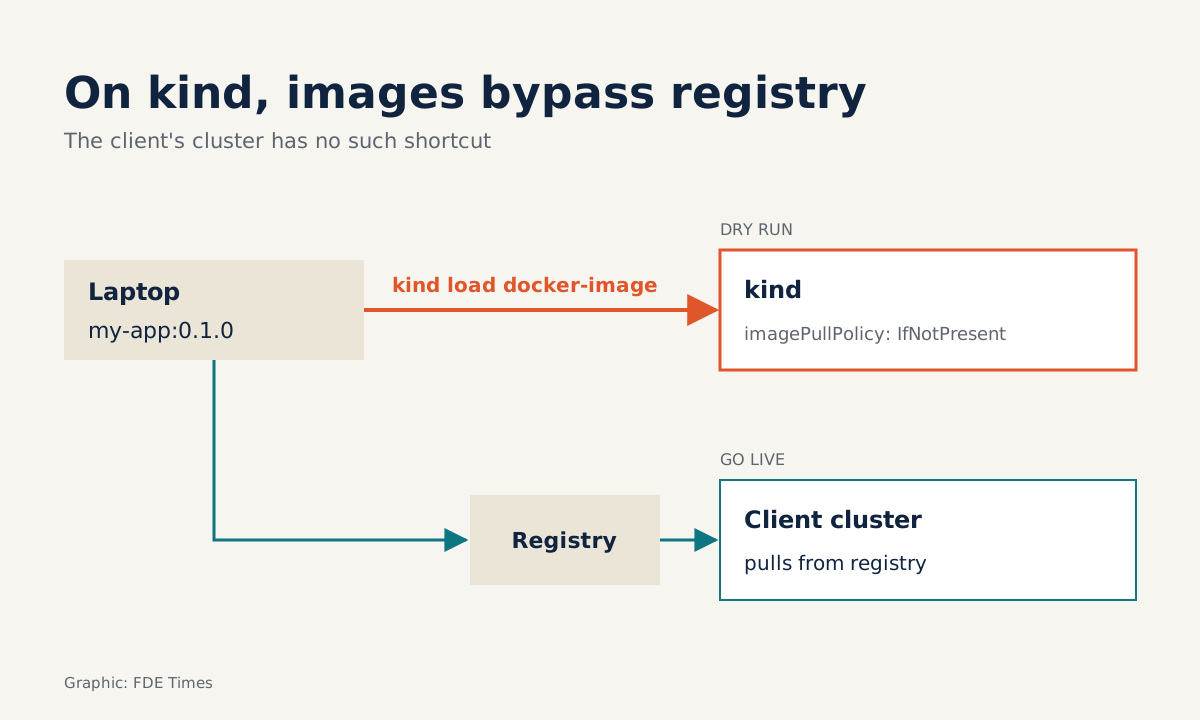
kind create cluster --name test-clusterThe second step is where kind saves the most time. The image you just built sits in Docker on your machine and is not in any registry yet. Instead of setting up a registry or pushing the image somewhere public, you load it straight into the cluster:
kind load docker-image my-app:0.1.0 --name test-clusterThe third step is to install the chart, setting the pull policy in the install command itself:
helm install my-app ./chart --set image.tag=0.1.0 --set image.pullPolicy=IfNotPresentThis command assumes the chart follows the common values layout, with image.tag and image.pullPolicy keys. The customer’s chart may name its keys differently, so open values.yaml and check first. The --set flag works because values.yaml only holds the chart’s defaults, and whoever installs it may override them at install time.
If the pods come up, you have verified three things before walking into the customer’s meeting room: the templates render correctly, the values are valid, and the image runs in a real Kubernetes cluster.
When a pod will not start, suspect the image first
The example above has one point to watch. An image loaded with kind load lives only inside the kind cluster, not in any registry. If the cluster is told to pull the image from a registry, it will go looking for something that does not exist there.
The setting that decides this is the container’s imagePullPolicy. The kind documentation recommends setting it to IfNotPresent or Never, and avoiding the :latest tag. According to the Kubernetes documentation, IfNotPresent pulls the image only if it is not already present, while Never never pulls: if the image is present, the kubelet starts the container; if not, startup fails.
So the first thing to do when a pod hangs is run kubectl describe pod and read the Events section before suspecting the templates. If Events show the cluster trying to pull the image, check whether the install command included --set image.pullPolicy=IfNotPresent, or whether the chart sets the policy under a different key that your flag does not reach.
Combined with a fixed tag such as 0.1.0, the cluster will use exactly the image you just loaded. A fixed tag is also what you need for the real install, because it tells you precisely which version is running.
kind is not a copy of the customer’s cluster
kind’s homepage says outright that the tool was built primarily for testing Kubernetes itself; local development and CI are secondary uses. Keep that in mind when reading the results. A green kind cluster proves the chart is correct for Kubernetes; it does not yet prove the chart is correct for the customer’s environment.
A production cluster can differ from a kind cluster in many places: which storage class is used, the cloud provider’s load balancer, network policies, which registries images may be pulled from, how strict the RBAC permissions are.
The kind load docker-image trick is the clearest example. On kind it bypasses the registry, while on a real cluster the image still has to sit in a registry the customer’s cluster can pull from, and imagePullPolicy may then need to differ from the rehearsal.
The sensible way to use kind is as a first filter. It catches template, values and image errors on your machine, so that time at the customer’s site goes on what is genuinely specific to them. In customer discovery, ask early about storage, ingress, registries and access, because kind cannot answer those questions for you.
An exercise to prove you can do it
Put all the steps together into a short exercise. Create the test-cluster cluster, load my-app:0.1.0, install the chart with imagePullPolicy: IfNotPresent, then run the application on two pods.
How you get to two pods depends on the chart. replicaCount is not a built-in Helm feature but a key each chart defines in its own values. If the chart has that key, use --set replicaCount=2. If not, kubectl scale deployment my-app --replicas=2 resizes the deployment without touching the chart.
Expected result: kubectl get pods -o wide shows two pods in the Running state. If a pod hangs, go back to the Events section of kubectl describe pod. Finding the cause here, on a laptop, is far cheaper than finding it in front of the customer.
What to learn first, and what to put on your CV
A sensible learning order is: create a named cluster, load an image with a fixed tag, understand imagePullPolicy, install a chart, then practise overriding values and scaling a deployment.
For anyone moving into an FDE role, this is an easy skill to demonstrate. A small repo with a chart and a CI job that installs it onto a kind cluster on every push is more convincing than a line saying “knows Kubernetes” on a CV.
When you read job postings that mention Kubernetes, Helm or “deploying into customer environments”, you will already have a concrete story to tell in the interview, including the time a pod would not start and how you followed the Events to find the cause.
Customers never see your kind cluster. What they see is an install that works from the first command.
Was this article useful?
Thanks for the feedback!