Why you must never edit a migration that already ran for a client
Flyway, Rails and Liquibase all keep a record of every migration they apply, so the right fix is always a new file, never an edit.
In brief
- Each time it runs a migration, Flyway stores a CRC32 checksum in the schema history table. The validate command fails if the file on disk no longer matches.
- An applied migration should not be edited. To make a change, restore the original file and write a new migration to roll forward.
- Rails and Liquibase follow the same principle. Manual changes made outside migrations, however, are invisible to checksums.
Change a single int to bigint in a migration file that has already run, and Flyway can halt the whole pipeline. The tool is not being fussy for the sake of it. It is telling you that the client’s database and the file in your repo now tell two different stories.
You bring a new feature to a client, and that feature needs an extra column or table. The same change has to run on your machine, in the test environment and on the client’s database, where you may have access for only a few hours.
Flyway is a Redgate product, which the company presents as a database change management solution. Its core is open source under the Apache 2.0 licence, maintained by Redgate together with many contributors. Understanding why Flyway forbids editing old files is also understanding how it keeps environments from drifting apart.
Each file is a version, and versions must not repeat
Versioned migrations follow a naming convention that the Flyway documentation illustrates with the example V001.002__NewTwitterColumn.sql: the letter V, a version number, two underscores, then a description. Each versioned migration must have a unique version.
When you run migrate, Flyway first applies pending versioned migrations in version order, then any repeatable migrations that have changed. The folder for a logistics company’s order system might look like this:
sql/
  V001__create_orders.sql
  V002__add_weight_column.sql
  V003__add_delivery_window.sql
If the client’s database has already run up to V002 and you bring V003, only V003 is pending. The documentation’s example uses numbers with leading zeros. It is worth keeping that numbering from day one, so anyone opening the folder sees the files in the right order too.
Checksums remember what has run
Each time it executes a migration, Flyway stores its checksum; for SQL files this is CRC32. The schema history table in the target database records the applied migrations along with each file’s checksum. The validate command fails if a migration’s name, type or checksum differs from what was applied.
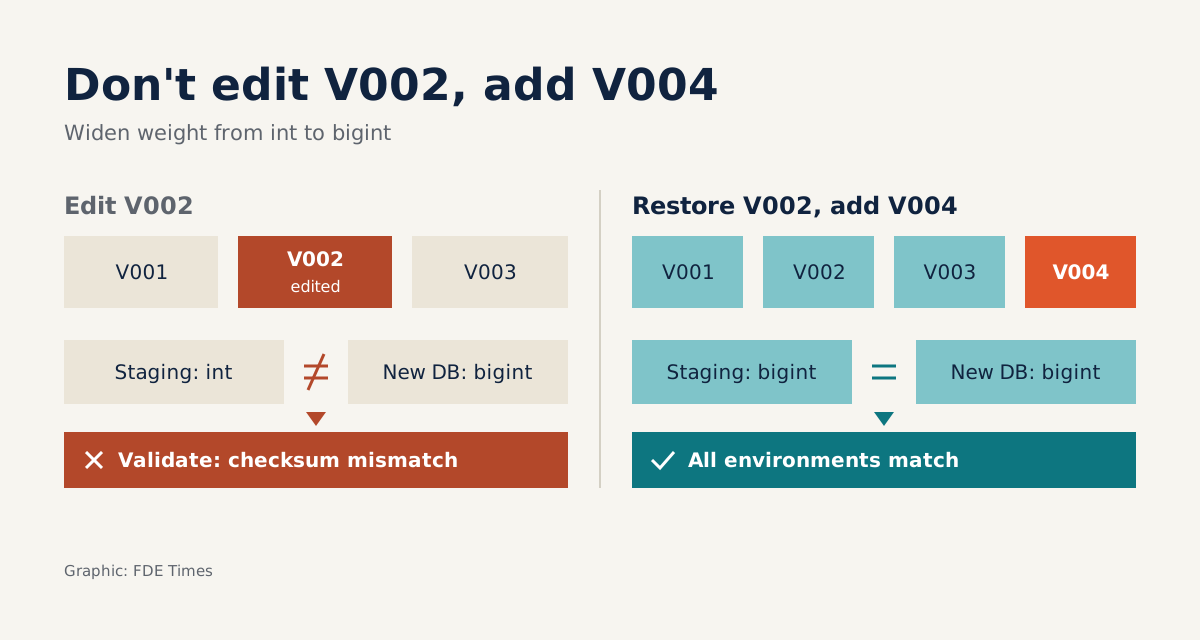
Now go back to the opening scenario. V002 creates a weight column of type int and has already run on the client’s staging environment. An engineer decides the column should be bigint, opens V002 directly, edits it and commits.
Staging still has an int column, while any database built fresh from the repo will have bigint. Nobody notices the two databases have diverged until validate runs and reports that the versioned migration’s checksum does not match the record in schema history. That error stops you before the divergence reaches production.
The right fix: restore the original, then keep going
The Flyway documentation treats not editing applied migrations as best practice, and recommends a new migration to roll forward. In the example above, you return V002 to its exact original content, then add a file V004__widen_weight_to_bigint.sql containing an ALTER statement that changes the column type.
From then on every environment goes through the same steps. Staging runs only V004. A new database runs the original V002, then on through V004, so the end result is identical and the history records exactly what happened.
Not just Flyway
This principle is not one tool’s quirk. Rails tracks migrations that have run through the schema_migrations table, so an applied file that is later edited will not be run again. That is why the Rails guides advise writing a new migration rather than editing one already committed.
Liquibase recalculates a changeset’s checksum each time it runs or checks it, and compares it with the stored value. The fix Liquibase suggests almost mirrors the example above: restore the original changeset, then add a new changeset to change the column from int to bigint.
So on any client project, whatever the stack, ask two questions in the first week. Which table does the migration tool store its history in, and does it compare checksums?
What can checksums not catch?
Checksums protect only the files. If someone on the client side opens a SQL client and adds an index by hand, no file changes, so validate has nothing to report.
That is where a drift report helps. The Flyway Check tutorial for SQL Server uses the -drift option to produce a report listing schema objects that were not created by any applied migration.
Imagine running this report on the client’s staging environment at the start of an engagement: if that hand-added index shows up, you ask the database owner whether it should stay, then capture it in a new migration so the repo and the database match again.
There is one more limit: correct ordering does not make a bad SQL statement safe. A migration that locks a large table at peak hours still locks it, however properly it is versioned. Writing migrations that run against the client’s real data is still your job.
What to learn first, and what to put on your CV
Learn in this order: the naming convention, how migrate picks pending files, then how to read the schema history table. Leave validate and drift reports for last, because only once you understand what the tool records can you read its errors correctly.
On your CV, do not just write “knows Flyway”.
When a job posting mentions client databases, have a story like this ready for the interview.
You will not be the last person to touch the client’s database. A chain of migrations that nobody has quietly edited is the most trustworthy thing you can leave for whoever comes next.
Was this article useful?
Thanks for the feedback!
9 sources
- Flyway - Redgate
- flyway/flyway: Flyway by Redgate • Database Migrations Made Easy
- Versioned migrations - Redgate Flyway - Product Documentation
- Migrations - Redgate Flyway - Product Documentation
- Validate - Redgate Flyway - Product Documentation
- Flyway schema history table - Redgate Flyway - Product Documentation
- Tutorial - Using Flyway Check with SQL Server - Redgate Flyway - Product Documentation
- Active Record Migrations — Ruby on Rails Guides
- What affects changeset checksums