The disk is full at 3am, and deleting the log won't fix it
The usual culprits are deleted files still held open, exhausted inodes or unbounded Docker logs, and a handful of commands is enough to tell them apart.
In brief
- logrotate usually runs only once a day, so a fast-growing log can still fill the disk between two runs.
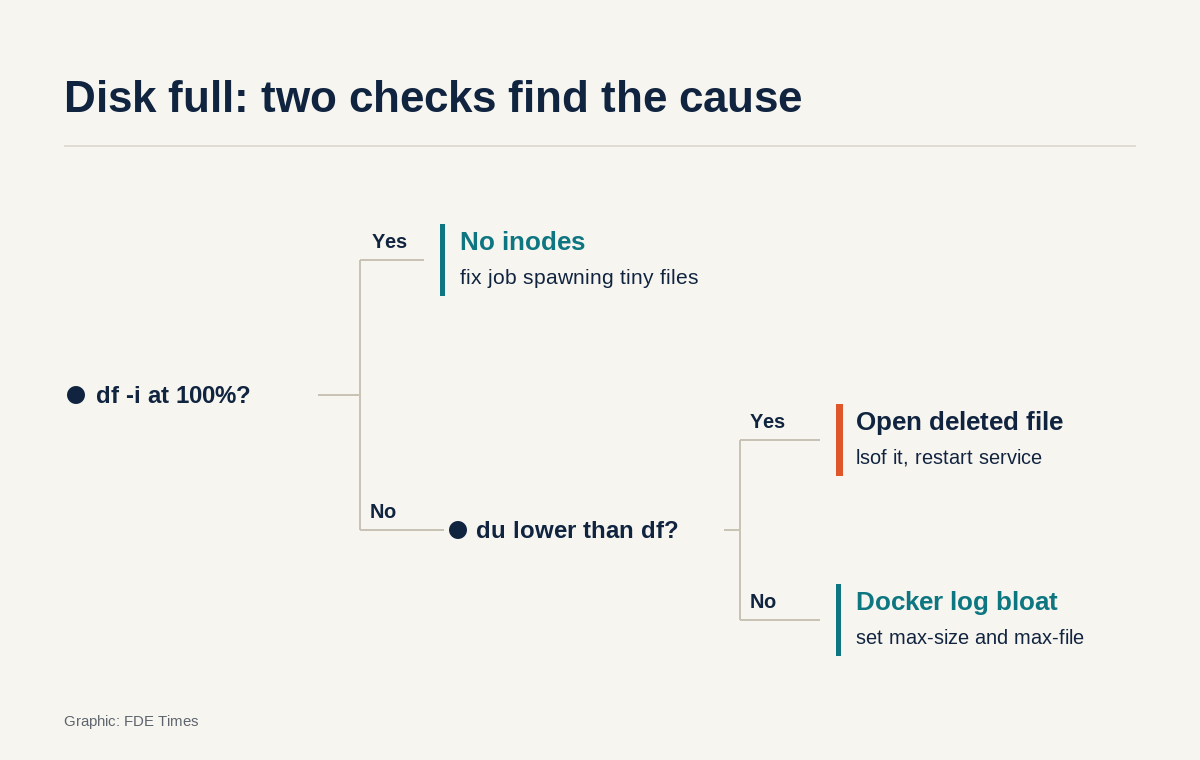
- If df says the disk is full but du finds nothing, a deleted file is almost certainly still held open by a process, and only restarting that process frees the space.
- Docker's json-file driver keeps unlimited logs by default, and max-file only takes effect when max-size is set too.
According to its man page, logrotate usually runs once a day, from cron or from systemd’s logrotate.timer. Between two runs, a log file has a whole day to grow. If a client’s service starts spewing errors at midnight, the disk can be full by 3am, long before logrotate gets its turn.
For a forward deployed engineer this is more than an operations problem. You deploy software onto the client’s machines, often machines you did not build, with no proper monitoring and nobody on call overnight. When the disk fills up, the database stops writing, agents stop saving checkpoints, and the next morning’s call opens with “your system is down again”.
The skill has two halves: diagnosing the problem in 10 minutes, and configuring the machine so it does not happen again. Both depend on a clear grasp of three things: bytes, inodes, and files that have been deleted but are still open.
“No space left on device” has at least three meanings
There is only one error message, but three different causes can produce it. The disk may have run out of bytes. It may also have run out of inodes, the slots needed to create new files, even with tens of gigabytes still free. Notes from the ACM chapter at the University of Illinois recommend running both df and df -i to see which is short, or whether both are.
Inode exhaustion usually comes from directories holding huge numbers of small, empty or duplicate files. On a client machine that might be a cache directory, session files, or a job that writes each request to its own file. The third meaning is the hardest to spot: space taken up by a file that no longer has a name on disk.
The Debian Wiki describes this clearly. When a process still holds a file open, deleting the file removes only its name; the data keeps occupying space until the process stops. That is why df reports a full disk while du never adds up to a matching figure.
One full-disk night, command by command
Take a hypothetical Ubuntu machine at a client, running a service called ingest that logs to /var/log/ingest/app.log, alongside a few Docker containers. Someone noticed the disk was full and ran rm on the 30 GB log file to save time. The disk is still full. At this point, work through the four steps below.
# 1. Short of bytes or short of inodes?
df -h /
df -i /

# 2. Where are the bytes? (-x keeps du from crossing into other filesystems)
sudo du -xh --max-depth=1 / | sort -h | tail

# 3. Any deleted files still held open?
sudo lsof -nP | grep '(deleted)'

# 4. Inspect the suspect process's file descriptors directly
sudo ls -l /proc/<PID>/fd | grep deleted
Suppose df -h reports 100%, df -i only 12%, and the du totals come up about 30 GB short. That gap is the fingerprint of a deleted file still held open. lsof will show the ingest process still holding app.log (deleted), along with the file’s inode number, just as the Debian Wiki describes finding it through /proc/PID/fd and lsof.
The reliable way to reclaim the space is to restart the process, because the space is returned only when the process stops. If this is a production service serving the client, tell the person responsible first and agree on when to restart, rather than running kill yourself in the middle of the night.
If df -i is the one at 100%, the path is entirely different: find the directory with the most files using find /var -xdev -type f | cut -d/ -f2-4 | sort | uniq -c | sort -n | tail.
Because the root cause is too many small files, the fix belongs in the job that creates them: add a periodic cleanup step for that directory, or change the job to pack many records into fewer files. Delete them once without fixing the job and the inodes will run out again within weeks.
Step 2 may also point at /var/lib/docker or /var/log/journal. Those two have their own rules, covered below.
Fix logrotate so it runs in time and keeps every line
Once the fire is out, the next job is a configuration that stops it starting again. Here is a sensible /etc/logrotate.d/ingest:
/var/log/ingest/*.log {
    daily
    maxsize 500M
    rotate 7
    compress
    delaycompress
    missingok
    notifempty
    postrotate
        systemctl kill -s HUP ingest.service
    endscript
}
maxsize rotates the file as soon as it passes 500M, even before the daily period is up. There is a trap here: logrotate checks sizes only when it runs.
If it still runs only once a day, maxsize is close to useless, so for fast-growing logs have the timer or cron call logrotate every hour. size is different: it rotates on size alone and ignores time.
The postrotate block runs after the file has been rotated and before compression. That is where you tell the service to reopen a fresh log file; the exact signal depends on the application, and HUP is just a common example. Without this step the service keeps writing to the old file, and you are back in the deleted-but-open situation described above.
delaycompress postpones compressing the just-rotated file until the next rotation. It helps when the process keeps writing to the old file for a while after rotation.
copytruncate is convenient, but it has a cost
Some programs cannot reopen their log file, and there is no signal to send them. For these, logrotate offers copytruncate: copy the contents to a new file, then truncate the original to 0 bytes while the process carries on writing. The man page says plainly that there is a very small window between the copy and the truncate in which some log data may be lost.
postrotate tells the service to reopen the file
- No log lines lost during rotation
- Needs the service to support a signal or reload command
- Forget postrotate and the old file stays held open
copytruncate
- Works even with programs that cannot reopen files
- May lose a few lines between the copy and the truncate
- Copying a large file temporarily uses extra space
For logs used for auditing, or to prove to the client that a request was processed, do not use copytruncate. For the debug log of a minor tool, it is usually acceptable.
Docker and journald play by their own rules
Docker’s json-file driver defaults to a log size of -1, meaning unlimited. A container printing stack traces non-stop can fill the host’s disk without logrotate ever touching it. Set limits in /etc/docker/daemon.json:
{
  "log-driver": "json-file",
  "log-opts": { "max-size": "100m", "max-file": "5" }
}
Docker’s documentation states that max-file has no effect unless max-size is set, so set both. After editing the file, check the log configuration of running containers with docker inspect rather than assuming the change has taken effect.
journald limits itself with SystemMaxUse= in journald.conf. By default it takes 10% of the filesystem, and the computed default never exceeds 4G; on a small partition shared with a database, set an explicit figure.
One more caveat: when it cleans up, journald deletes only archived journal files, so usage can still exceed the limit while the active file keeps growing. Measure the journal’s real size on disk instead of trusting the number in the config file.
The usual mistakes on client machines
The most common mistake is running rm on an open log file and thinking the job is done, when the right move is to truncate it or restart the service. The second is setting maxsize but leaving logrotate to run once a day. The third is looking only at df -h, skipping df -i, and then spending an hour hunting for bytes that were never missing.
Two more are worth listing. One is configuring max-file for Docker but forgetting max-size. The other is installing your software on a client’s machine without recording where its logs live and who rotates them, leaving the client’s team to guess when the disk fills.
Turn it into evidence on your CV
In FDE job postings, phrases such as “Linux troubleshooting”, “on-call” and “deploy into customer environments” are quietly asking about exactly this skill. On a CV, a line such as “wrote a full-disk runbook and standardized log limits across N client machines” is more persuasive than “proficient in Linux”.
In interviews, walk through the df, df -i, du, lsof sequence; interviewers can tell straight away who has handled a real incident.
This week’s exercise: on a virtual machine, recreate the scenario from this article. Have a process hold a log file open, delete the file, watch df and du disagree, then fix it with a logrotate config that includes postrotate. The next time a client’s disk fills up at 3am, you will not be learning these commands under pressure.
Was this article useful?
Thanks for the feedback!