AWS Session Manager: reach a client's servers without opening port 22
No port 22, no bastion, and access defined entirely in an IAM policy. But SSH tunnels through Session Manager do not log what happens inside the session, and the client needs to know that before signing off.

In brief
- Session Manager lets you close inbound SSH and PowerShell ports and drop bastions and SSH keys; IAM policy decides who gets access.
- SSH, SCP and port forwarding run through the tunnel, but Session Manager does not log the content of these sessions.
- CloudTrail still records the session API calls; interactive shell sessions can stream logs to S3 or CloudWatch Logs.
In the first week with a new client, one meeting comes up again and again. You need to get onto a server to read logs and fix a failing service. The security team tells you port 22 will stay closed, and nobody is going to build a bastion just for you.
Faced with that, many engineers wait on a ticket or ask someone on the client side to type each command for them. If the infrastructure runs on AWS, there is a better option. Session Manager, part of AWS Systems Manager, gets you onto the machine with inbound ports still closed, no bastion, and no one holding SSH keys.
For an FDE, the tool solves two problems. You get into the real system faster, and the security team gets an access model it can inspect. It does have an audit limitation, though, and you need to understand it before promising the client anything.
Why security teams say yes more easily
AWS’s documentation puts the reason plainly: open SSH and remote PowerShell ports on a machine greatly increase the risk of unauthorised commands being run. Session Manager lets you close those ports entirely. AWS stressed this point when it launched the tool on 11 September 2018.
What usually wins over the security team is IAM: access is decided solely by IAM policy. The client’s admins choose which people or groups may use Session Manager and which machines they can reach.
They can also grant time-limited access, for example to an on-call engineer. Letting you in is therefore no longer a matter of creating a Linux account or handing out keys. It is a policy they write themselves, review themselves and can revoke themselves.
On the wire, traffic between the client and the machine is encrypted with TLS 1.2. Connection requests are signed with SigV4, and a further layer of encryption can be added with a KMS key. If the client is worried about software installed on your laptop, the Session Manager plugin is open source on GitHub under the Apache 2.0 licence, so they can read the code themselves.
A policy narrow enough for the client to approve
Rather than asking for “AWS access”, bring a concrete draft policy to the meeting. The sketch below only allows SSH sessions through Session Manager to a single machine; the values in angle brackets are for you to fill in.
{
  "Version": "2012-10-17",
  "Statement": [
    {
      "Effect": "Allow",
      "Action": "ssm:StartSession",
      "Resource": [
        "arn:aws:ec2:<region>:<account-id>:instance/<instance-id>",
        "arn:aws:ssm:<region>::document/AWS-StartSSHSession"
      ]
    }
  ]
}
This is a starting point for discussion, not a final version. In practice, consider adding ssm:TerminateSession and ssm:ResumeSession on the user’s own sessions, so the first session does not get stuck when it needs to be closed or resumed; check this against the Systems Manager IAM documentation.
The value of the draft is that the security team can see at a glance exactly what you can reach.
A small example: keep your SSH habits
Suppose you need to copy a configuration file to machine i-0abc... and then look at a service’s logs. The first step is to install the AWS CLI and the Session Manager plugin on your laptop. The plugin is available for Windows, macOS and Linux.
If all you need is a shell, aws ssm start-session --target <instance-id> is enough. But most engineers are used to ssh, scp and the tools around them. Session Manager supports tunnelling SSH and SCP; AWS’s documentation does this with a ProxyCommand line that calls aws ssm start-session with the AWS-StartSSHSession document.
An equivalent, more readable approach is to move the command into a small script, say ~/bin/ssm-proxy.sh:
#!/bin/sh
# $1 = machine ID, $2 = SSH port
exec aws ssm start-session \
  --target "$1" \
  --document-name AWS-StartSSHSession \
  --parameters "portNumber=$2"
Then in ~/.ssh/config:
Host i-* mi-*
    ProxyCommand ~/bin/ssm-proxy.sh %h %p
Here %h is the machine ID: the i- prefix for EC2, mi- for machines outside EC2. %p is the port. From then on, ssh and scp to i-0abc... both go through Session Manager, and the machine’s security group needs no extra open ports.
Port forwarding works the same way: a port inside the machine is brought to a port on your laptop. It is a sensible way to look at a client’s internal database or web UI without exposing them to the outside.
Session Manager also works with machines that have no public IP and with hybrid environments. With a VPC endpoint through AWS PrivateLink, all traffic between the machine, Systems Manager and EC2 stays within Amazon’s network.
The easy-to-miss limit: a tunnel is not an audit trail
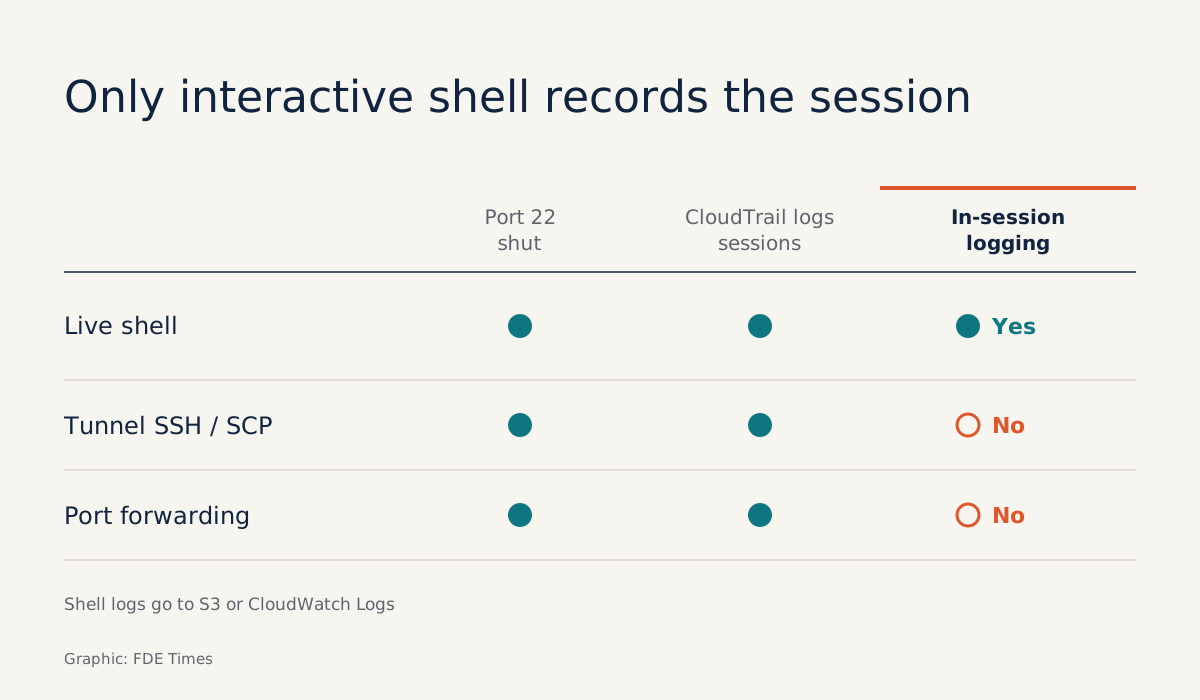
This is where FDEs are most likely to overpromise. AWS’s documentation is explicit: sessions over port forwarding or SSH are not logged. In those two cases, Session Manager does not record what you type inside the session.
What is still recorded are the API calls. CloudTrail logs session-creation calls made from the console, the AWS CLI and SDKs. EventBridge can send alerts on StartSession, ResumeSession or TerminateSession. For Session Manager’s interactive shell, session logs can be streamed to S3 or CloudWatch Logs.
So if the client needs to know exactly which commands ran on a production machine, use the interactive shell and turn on logging to S3 or CloudWatch Logs. Do not use an SSH tunnel in that case.
If an SSH tunnel is the only option, say plainly that CloudTrail shows only who opened a session to which machine and when, not what was done inside it.
Two common mistakes for newcomers
The most common mistake is promising “everything is logged” and then working through an SSH tunnel. As explained above, the two do not go together, and the client will find out at the worst possible moment: while investigating an incident.
The other is installing the AWS CLI and assuming you are done. To open sessions from the command line, your laptop also needs the separate Session Manager plugin. Check this before the first working session, rather than leaving a room full of people waiting while you install it.
What to learn first
Learn IAM first, not Session Manager. Practise writing a policy like the sketch above, open a session, then read the CloudTrail event for that very session. Only then move on to SSH configuration and port forwarding.
On your CV, don’t just write “used AWS”. Be specific, for example: designed IAM-based access to a client’s production machines with no inbound ports, with alerts when sessions are opened. A line like that shows a recruiter you understand what worries a security team.
In the first meeting with the client, the question to ask is “what level of audit do you need?”. The answer decides whether you use the interactive shell or an SSH tunnel.
Was this article useful?
Thanks for the feedback!