The client's workbook is already the spec. Nobody has read it
The hardest part is telling real business rules apart from errors the client has used for so long that they now work as rules.
In brief
- A spreadsheet shows you its results and hides its formulas, so the real business rules often sit in hidden sheets, macros and external links.
- In the Enron spreadsheet corpus, 24% of files with formulas contained at least one Excel error, so copying a workbook as it stands means copying its errors too.
- Ask the file's owner about specific cells, decide whether to keep, fix or drop each rule, then check the result with tests and a parallel run.
Robert Greiner, writing about Forward Deployed Engineers, describes a file that anyone who has worked on a client site will recognize: the spreadsheet Linda keeps herself because the system cannot handle the exceptions.
Martin Fowler regards spreadsheets as one of the most widely used programming languages. He also points out what makes them hard to read: the results are right there on the screen, while the formulas stay out of sight. When a client hands over a workbook, you see the numbers at once, but to learn which rules produce them you have to dig.
If your job is to replace that process with a pipeline or an agent, you have to reproduce the rules in the file exactly. Miss one, and the client will see the new system get the numbers wrong.
Copying everything wholesale carries its own risk. A study by Hermans and Murphy-Hill of more than 15,000 Enron spreadsheets found that 24% of the spreadsheets with formulas contained at least one Excel error.
Read a spreadsheet the way you read legacy code
Hermans’s group once surveyed professional spreadsheet users at a large financial company. Leif Singer summarized the findings: spreadsheets inherited from someone else are often very hard for a newcomer to understand. It is the same position as inheriting a codebase with no README.
The good news is that the set of functions you need to know is probably small. In the same Enron dataset, 76% of spreadsheets used only a shared group of 15 functions. That suggests the hard part is usually the structure of the file, the places where logic gets hidden, rather than any individual function.
| Where logic hides | How to see it | Blind spot to remember |
|---|---|---|
| Hidden and very hidden sheets | A script that reads sheet_state |
A very hidden sheet does not reappear through the Unhide menu; you have to reset its visibility property |
| Formulas | openpyxl with data_only on and off |
openpyxl does not calculate; the values it reads are the ones Excel last saved |
| VBA and XLM macros | olevba -c |
The Change event does not fire when a cell’s value changes through recalculation |
| Relationships between cells | Trace Precedents/Dependents | Does not draw named constants, PivotTables, charts, shapes, or other workbooks that are closed |
A hypothetical workbook, read end to end
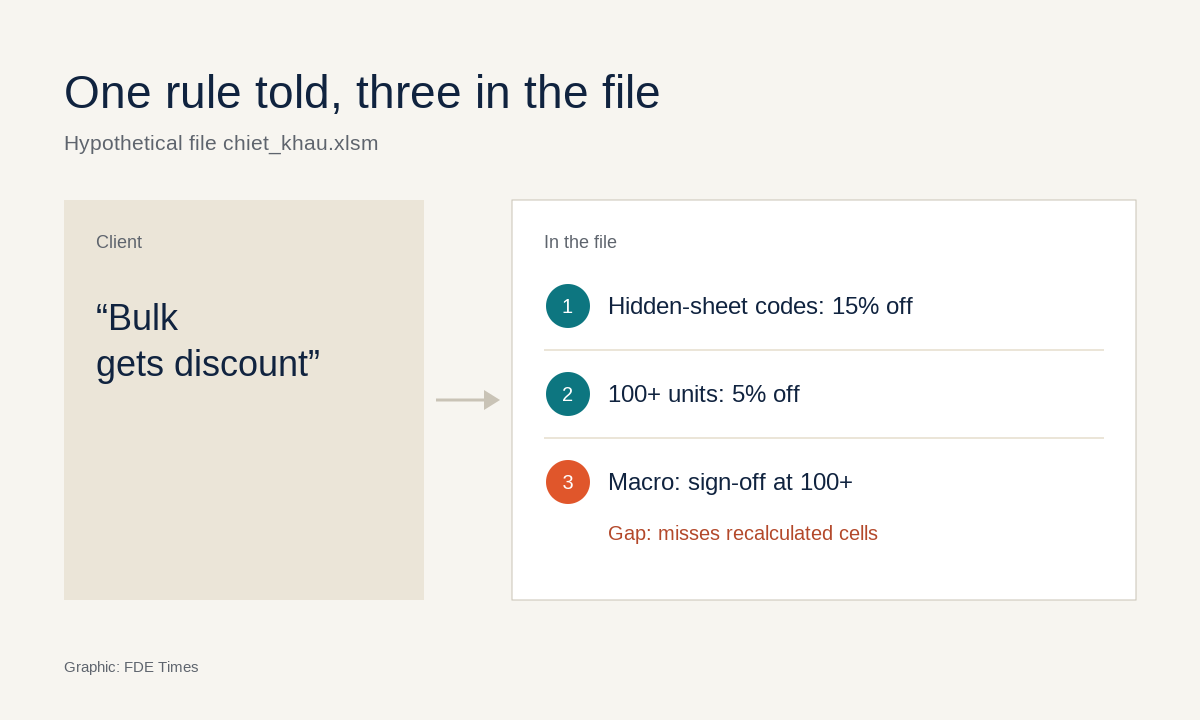
Take a distributor that sends you a file called discounts.xlsm, which its sales staff use to work out the final price of each order. According to the client, the rule is simply that “large orders get a discount”. Before you believe that, pull out every formula.
from openpyxl import load_workbook

f = "discounts.xlsm"
wb_f = load_workbook(f)                  # read formulas (the default)
wb_v = load_workbook(f, data_only=True)  # read the values Excel last saved

for ws in wb_f.worksheets:
    print(ws.title, ws.sheet_state)      # visible / hidden / veryHidden
    for row in ws.iter_rows():
        for c in row:
            if isinstance(c.value, str) and c.value.startswith("="):
                v = wb_v[ws.title][c.coordinate].value
                print(f"  {c.coordinate}: {c.value} -> {v}")
Say the output reveals a sheet named Exceptions in the veryHidden state, and cell Orders!F2 contains =IF(COUNTIF(Exceptions!A:A,B2)>0,E2*0.85,IF(D2>=100,E2*0.95,E2)). The workbook then holds two rules, not one. Customers whose codes appear on the hidden list get 15% off. Everyone else gets 5% off only when the order is 100 units or more.
Next, run olevba -c discounts.xlsm to print the VBA code without analyzing it. Suppose it contains a Worksheet_Change procedure: when a user types a number of 100 or more into column D, the macro writes “Needs approval” into column G. That is a third rule: large orders must be approved by someone.
The third rule has a gap. The Change event fires when a user or an external link edits a cell, but not when the cell’s value changes through recalculation.
If some rows in column D pull their quantity from another sheet by formula, those large orders will never be flagged. This is the kind of detail you must take to the client rather than settle yourself.
Ask about specific cells
When you meet the person who maintains the file, avoid general questions such as “how does the discount process work?” Open the screen, point at cell F2 and ask: “Who updates this list of customers on 15% off, and when was it last updated?” Then follow up: “The order on row 40 is for 120 units, but column G is blank. Does this order need approval?”
The answer to the second question tells you whether the gap in the macro is a rule the client set on purpose or a mistake. If the reply is something like “oh, it should need approval, surely”, you have just found a hole the client did not know about either.
A real rule, or an error turned habit?
Spreadsheet errors can be very expensive. James Kwak quotes an appendix to the JPMorgan task force report on a VaR model run in Excel: after taking the difference between two interest rates, the spreadsheet divided by their sum, when the modeler had meant to divide by their average.
Because a spreadsheet displays its results and not its formulas, a wrong division like this can sit in a cell without anyone noticing.
On the other hand, the Feature Parity pattern by Cartwright, Horn and Lewis warns that workarounds for old bugs and limitations in a legacy system have become mandatory requirements of the current process.
The same piece notes that many old features are no longer used by anyone. So give every rule you extract one of three labels: keep, fix or drop. Each label must carry the name of the person on the client side who agreed to it.
The final step is a parallel run. The Divert the Flow pattern observes that many old reports contain errors nobody has spotted, and that a parallel run may be needed in the early stages so that the key figures match.
Use the values read with data_only turned on as the expected results for your tests, but take them from a copy of the file the client has just opened and saved in Excel, because those are the values saved the last time Excel read the sheet. For any row that differs, work out which of the three labels it falls under before deciding whether the new system is right or wrong.
Take inventory before reading the details
If the client’s Office installation has the Spreadsheet Inquire add-in, run Workbook Analysis first. Microsoft’s documentation gives the example of a report that counts 98 formulas, 2 hidden sheets, 1 linked workbook and 1 data connection to an external file.
Those four numbers are enough to estimate the workload. The add-in is not available in every version of Office, so always keep the script above to hand.
Linked workbooks and data connections are the parts of the process that live outside the file in your hands. Ask for those files too, because the Trace Precedents arrows cannot follow formulas into another workbook while that workbook is closed.
Common mistakes
The first mistake to avoid is reading only the visible sheets, when the list of exceptions may sit on a very hidden sheet, as in the example above.
The second is treating saved values as current values. openpyxl never calculates formulas, and the values it returns are the ones saved the last time Excel read the sheet. If the file was ever rewritten by a tool that does not recalculate formulas, the numbers you read may be stale relative to the formulas in the cells.
The third is believing the trace diagram is complete. The fourth is skipping the macros because they are “just interface automation”. The most expensive is copying every behavior without asking the client, because that carries the wrong division into the new system along with everything else.
How this skill should show up on a CV
On a CV, a line such as “extracted 14 business rules from a legacy workbook, turned them into tests and ran in parallel until the figures matched” (with your own numbers) carries far more weight than “proficient in Excel”.
Linda’s file is not something to get rid of as fast as possible. It is the only specification that has been tested by years of real use, mistakes included.
Was this article useful?
Thanks for the feedback!
13 sources
- Illustrative Programming (Martin Fowler) · 2009-06-30
- Enron's Spreadsheets and Related Emails: A Dataset and Analysis · 2014
- Supporting Professional Spreadsheet Users by Generating Leveled Dataflow Diagrams (review, Never Work in Theory) · 2012-05-24
- Analyze a workbook with Spreadsheet Inquire (Microsoft Support)
- XlSheetVisibility enumeration (Excel) | Microsoft Learn
- Display the relationships between formulas and cells (Microsoft Support)
- Worksheet.Change event (Excel) | Microsoft Learn
- olevba · decalage2/oletools Wiki
- Tutorial — openpyxl documentation
- Feature Parity (Patterns of Legacy Displacement) · 2021-07-27
- Divert the Flow (Patterns of Legacy Displacement) · 2022-01-20
- The Importance of Excel (The Baseline Scenario, James Kwak) · 2013-02-09
- The Most Expensive Wall in Software (Robert Greiner) · 2025-12-17