Hands-on: finding the slow spot in a client's Python pipeline with cProfile and py-spy
When a client's job runs forever, measuring takes less time than guessing. This guide covers two tools, five steps and one access problem every FDE runs into.

In brief
- cProfile measures every function call, so it is precise but slows the program down. py-spy samples from outside the process with very low overhead and can be used in production.
- The cumulative column points to a poor choice of algorithm; the time column points to a hot loop. Fix the algorithm first.
- Inside a container, py-spy needs SYS_PTRACE. On a client's cluster, ask the admin before changing the security context.
A client’s nightly job used to take 20 minutes. Now it has been running for three hours and still hasn’t finished. Everyone in the meeting room has a theory: the database, the network, the library that was just upgraded. A good FDE does not add another theory. They run a profiler, and ten minutes later they can point to the exact function eating the time.
The skill sounds basic, but on a client site it decides whether you keep their trust. You usually cannot change code at will or restart a running service, and you still have to explain the results to people who did not write a line of the code involved.
This guide covers two tools for those two situations: cProfile when you can rerun the script, and py-spy when the process is already running on the client’s machine.
What will you do, and what do you need?
You will profile a mock pipeline that is deliberately written to be slow, read the results, fix it and measure again. You need Python 3, a terminal and py-spy, installed by following the instructions in the benfred/py-spy repository on GitHub. The Docker section requires Docker on your machine.
Here is the sample script. It mimics a very common enrich step: joining each transaction row with customer details.
# slow.py — mock pipeline, deliberately slow
def load_rows(n):
    return [{"id": i, "customer": i % 1000} for i in range(n)]

def enrich(rows, customers):
    out = []
    for r in rows:
        # linear search through the list for EVERY row
        match = [c for c in customers if c["id"] == r["customer"]]
        out.append({**r, "name": match[0]["name"]})
    return out

def main():
    customers = [{"id": i, "name": f"cust{i}"} for i in range(1000)]
    rows = load_rows(50_000)
    enrich(rows, customers)

if __name__ == "__main__":
    main()
Step 1: run cProfile and sort by cumulative
cProfile is a deterministic profiler: it tracks every function call, return and exception event, and measures the exact intervals between them. In recent Python versions, the documentation calls this profiler profiling.tracing and keeps cProfile as a backward-compatible alias, so the familiar command still works.
python -m cProfile -s cumulative slow.pyCheck: at the top of the table, main and enrich have a cumulative time close to the total run time. The Python documentation recommends exactly this column for finding high-level algorithmic mistakes. Here the problem shows immediately: enrich carries almost all the time, even though all it does is look things up.
Step 2: switch to time to find the hot loop
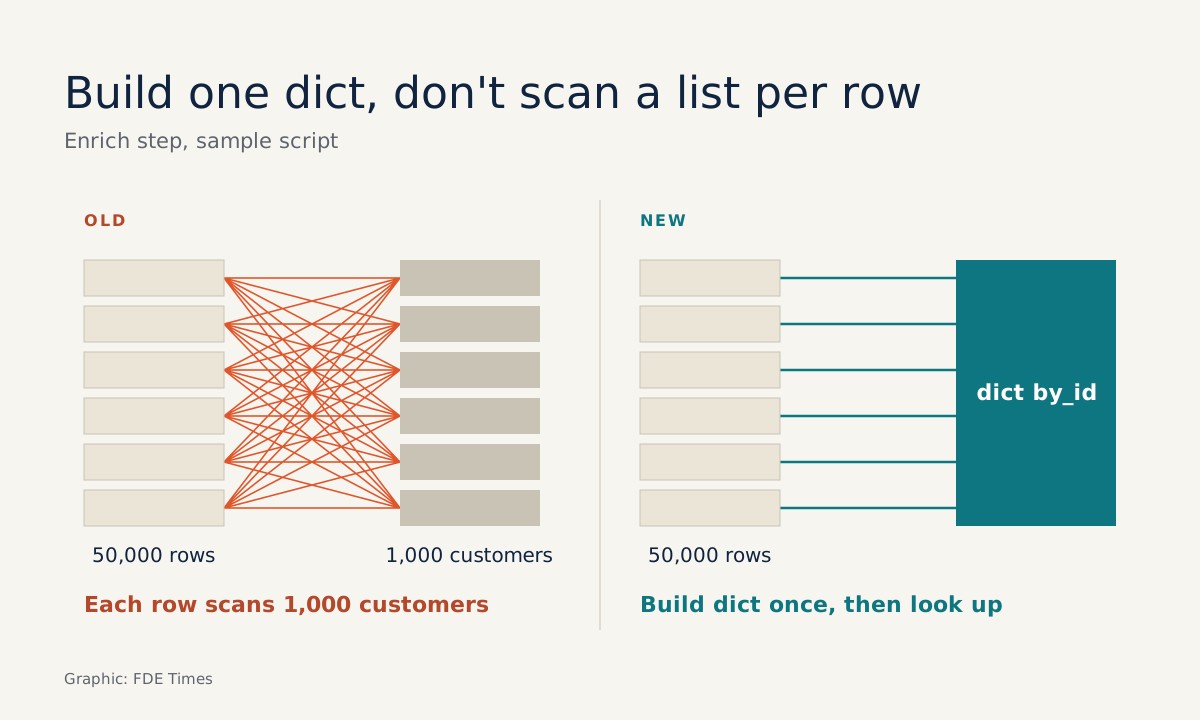
python -m cProfile -s time slow.pyThe time column is internal time: time spent inside the function itself, excluding the functions it calls. According to the Python documentation, this is the number for finding the “hot loop” that deserves careful optimisation. Reading the sample script shows why: each of the 50,000 rows scans all 1,000 customers.
Depending on your Python version, the list comprehension inside enrich may or may not appear as a separate row in the table. Either way, the cost of scanning the list sits around enrich, so look there.
The order of reading matters. Read cumulative first to answer “are we using the wrong approach?”, then read time to learn “which loop needs every millisecond squeezed out of it?”. Optimising a loop inside the wrong algorithm is the fastest way to waste time.
The simple fix is to build a dict once and look up in it:
def enrich(rows, customers):
    by_id = {c["id"]: c["name"] for c in customers}
    return [{**r, "name": by_id[r["customer"]]} for r in rows]
Rerun step 1 and compare the cumulative time of enrich before and after the fix. Look at the absolute number, not the ranking: enrich may still sit near the top of the table, just below main, because it is still the heaviest step in a small script like this one.
Step 3: save results to a file for comparison
When you need to send results to a colleague or compare before and after, write them to a file with -o, then read that file with the pstats module from the standard library.
python -m cProfile -o before.prof slow.pyCommon mistake: adding -s cumulative to a command that uses -o, then wondering why no table appears. The documentation states that the sort key only applies when -o is not used. Valid keys include cumulative, time, calls and name.
Another mistake: reporting the seconds measured under cProfile to the client as if they were the real run time. Because it has to record every event, this profiler slows the program down. Use it to compare proportions between functions, and measure real time separately, with the profiler off.
Step 4: if you can’t restart, use py-spy
In client environments, the pipeline is often already running in a worker and you are not allowed to stop it to wrap it in cProfile. That is where py-spy comes in: a sampling profiler that runs outside the process. Its overhead is very low, so it can be used on production code without changing the code or restarting anything.
The Python documentation is also clear about the price: a sampling profiler only tells you, in relative terms, where time goes.
On your laptop, practise first with the sample script (the unfixed version):
py-spy record -o profile.svg -- python slow.pyThe -- separates the command that py-spy will launch. Open profile.svg in a browser: the widest block is where the most time passes, and it should match your conclusion from step 1.
If you want to explore interactively and zoom into individual branches, export to the speedscope format:
py-spy record --format speedscope -o profile.json -- python slow.pyFor a running process, py-spy has two more commands, both attaching by PID. py-spy top shows live which functions are consuming CPU. py-spy dump prints the current call stack of each Python thread. Check py-spy dump --help for the exact flags in the version you installed.
Distinguishing “slow” from “hung” helps you pick the right command faster. Dagster’s troubleshooting documentation recommends dump when a job hangs, because a per-thread dump often shows straight away where it is stuck. When code is merely slow, use record to get a flame graph.
Step 5: containers and the client’s cluster
This is where almost everyone gets stuck the first time. On Linux, the default configuration requires root to attach to a process that is not a child process. In Docker, the default seccomp profile blocks exactly the syscall py-spy uses to read another process’s memory, so the container must be run with this capability:
docker run --cap-add SYS_PTRACE <image>Kubernetes drops SYS_PTRACE by default, so you have to add it to the pod’s security context. Dagster advises checking with the cluster admin first whether this temporary change is acceptable. On a client site, that is mandatory, not a courtesy.
Practical advice: raise this request early, in the first week, as an item on your access checklist. When an incident hits at 2am, nobody wants to open a security ticket.
How does this skill apply on a client site?
Imagine a client reports that their enrich job gets slower every quarter. You run py-spy top on the worker and see a lookup function taking most of the samples.
You then reproduce the problem on your laptop with cProfile and sample data, and see the cumulative time pile up in that same function. What you bring back to the client is a flame graph from before and after the fix, not a theory.
For your career, this is experience worth putting on your CV with numbers: which job, how slow, which tools, and how much faster it became when measured with the profiler off.
When a job description includes phrases such as “debug production issues” or “performance tuning”, have a story like this ready, including the detail about requesting SYS_PTRACE. That detail shows the interviewer you have actually worked on someone else’s infrastructure.
The next time someone in the meeting says “it’s probably the database”, you will already have the commands to answer with data.
Was this article useful?
Thanks for the feedback!
5 sources
- The Python Profilers — Python documentation
- profiling.tracing — Deterministic profiling for Python programs
- benfred/py-spy: Sampling profiler for Python programs
- How to profile a Python script with py-spy — Python Developer Tooling Handbook
- Troubleshooting hanging or slow code with py-spy — Dagster Docs