Read and write Google Sheets and Drive with Node.js and a service account, step by step
Share a spreadsheet with a service account's email address and your Node.js script can read orders, write reports and push files to Drive. You don't have to wait for the client's IT team to grant domain-wide access.

In brief
- To give a script access to a file or folder, share it with the service account's email address as you would with a colleague. No admin is needed.
- valueInputOption is required when writing: RAW keeps strings as they are, while USER_ENTERED parses formulas and dates as if they were typed into Sheets.
- Batch many rows into one request, retry 429 errors with exponential backoff, and never commit the JSON key file.
In your first week at a new client, the data you need is rarely in a tidy database. More often it lives in a Google Sheet called something like “Orders – final – v3”, which the operations team updates by hand every morning.
If you can read and write that spreadsheet in code on day one, you have a working pipeline while everyone else is still waiting for access to the data warehouse.
Below, you will build a Node.js script piece by piece, using the official googleapis library and a service account. The script reads a range, overwrites cells, appends rows, handles quota errors and picks the right kind of upload to Drive. Every step ends with a check to run before you move on.
What do you need?
You need Node.js, a Google Cloud project in which you can create service accounts, and a test Google Sheet. Use a dummy sheet with a few rows, for example an Orders tab with columns for order ID, quantity, unit price and date. Don’t practise on the client’s real data.
The code below is trimmed for readability. It uses import and top-level await, so the file must run as an ES module. Check how the client is initialised against the googleapis README before you run it.
Step 1: create a service account and store the key carefully
A service account is a “robot account” for application-level, server-to-server authentication, which is exactly what a scheduled script needs. Create a service account in your project and download the JSON credential file. From now on, that file is the key to every document shared with the robot.
Google’s IAM documentation says plainly that service account keys are a security risk if they are not managed properly. Whoever holds a key is responsible for the private key and should prefer alternatives where possible. The googleapis README also reminds you to store the credential file somewhere safe and never put it in source control.
The safest approach is to keep the key entirely outside the repo folder. Then no git add can ever reach it:
mkdir -p ~/.secrets
mv ~/Downloads/key.json ~/.secrets/sa-demo.json
export SA_KEY_PATH=~/.secrets/sa-demo.json
# Replace the two values below with real scope strings before running
export GOOGLE_SCOPES="<scope-sheets> <scope-drive>"
<scope-sheets> and <scope-drive> are placeholders: leave them as they are and the script will not run. Before running it, look up the OAuth scope list in the Sheets API and Drive API documentation and copy the exact scope strings you need, separated by a space. Pick the narrowest scope that does the job: a read-only script doesn’t need a write scope.
Check: run echo $GOOGLE_SCOPES to make sure no < remains, then run git status in the repo and confirm that no JSON file containing the key is listed.
Step 2: share the file with the robot, no admin needed
Every service account has a unique email address. In a document’s sharing settings, you can treat that address like any ordinary user. Open the Google Sheet, click Share, paste the service account’s email and choose Viewer for read-only access or Editor if you need to write.
At a client, this is the most valuable detail of the whole technique. You don’t need the IT team to grant domain-wide access. The spreadsheet’s owner shares it with the robot and can revoke that access at any time.
Check: copy the spreadsheet ID from the URL (the part between /d/ and /edit) and save it in the SHEET_ID environment variable.
Step 3: read a range
Install the official library from npm:
npm install googleapisTo read, you need exactly two things: the spreadsheet ID and a range in A1 notation. The call is spreadsheets.values.get.
import { google } from 'googleapis';

const SCOPES = process.env.GOOGLE_SCOPES.split(' ');

const auth = new google.auth.GoogleAuth({
  keyFile: process.env.SA_KEY_PATH,
  scopes: SCOPES,
});
const sheets = google.sheets({ version: 'v4', auth });

const res = await sheets.spreadsheets.values.get({
  spreadsheetId: process.env.SHEET_ID,
  range: 'Orders!A1:D20',
});
console.log(res.data.values);
Check: you get back an array of rows. If you hit a permission error, you almost certainly skipped Step 2 or shared with the wrong email address.
Step 4: overwrite or append, and how Sheets interprets your data
To write, you need three things: the spreadsheet ID, an A1 range and the data in the request body. To write to a fixed range, use values.update. To add new rows at the end of a table, use values.append.
await sheets.spreadsheets.values.append({
  spreadsheetId: process.env.SHEET_ID,
  range: 'Orders!A:D',
  valueInputOption: 'USER_ENTERED',
  requestBody: { values: [['DH-1042', 3, 120000, '2026-10-21']] },
});
The valueInputOption parameter is required, and it decides how the data appears to users. RAW inserts the string as is. USER_ENTERED parses the input exactly as if someone had typed it into the Sheets interface, so formulas and dates are understood.
Try an example. Write the string =SUM(B2:B4) with RAW and the cell shows that literal text. Write it with USER_ENTERED and the cell becomes a formula showing the total. The same goes for 2026-10-21: one way gives you a string, the other a date that the operations team’s filters and charts can use.
A rule worth remembering: data meant for people to read in Sheets should use USER_ENTERED. Order IDs, phone numbers and anything that could be mistaken for a number or formula should be written with RAW.
Check: open the sheet, click the date cell and see whether it is formatted as a date or left-aligned like text.
Step 5: quotas are a design constraint, not a rare event
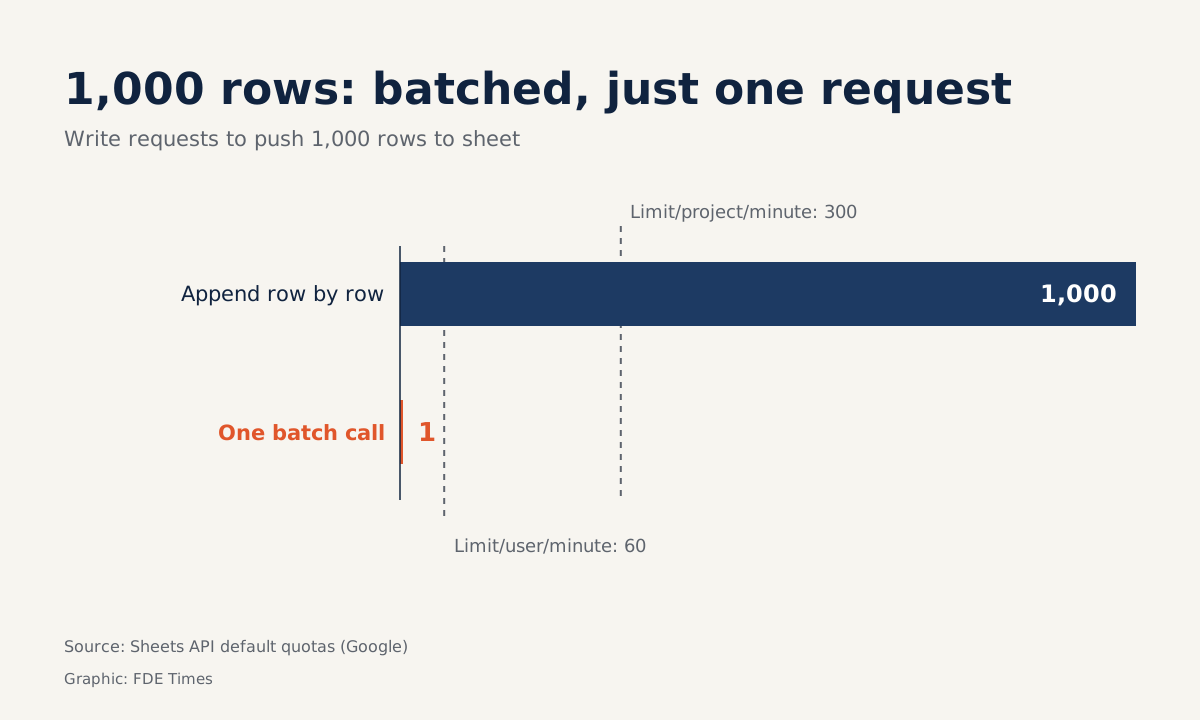
The Sheets API’s default quotas are 300 read requests and 300 write requests per minute per project, and 60 per minute per user. Go over them and you get an HTTP 429 error. Google recommends retrying with an exponential backoff algorithm.
Do the arithmetic. You need to push 1,000 rows into a sheet and you call append once per row. That is 1,000 write requests, more than three times the project-wide ceiling of 300 per minute, let alone the much lower per-user ceiling of 60. Put all 1,000 rows into the values array of a single append and you need just one request.
Even with batching, wrap every call in a retry function:
async function withBackoff(fn, maxTries = 5) {
  for (let i = 0; ; i++) {
    try { return await fn(); }
    catch (e) {
      if (e.code !== 429 || i >= maxTries - 1) throw e;
      const wait = 2 ** i * 1000 + Math.random() * 1000;
      await new Promise(r => setTimeout(r, wait));
    }
  }
}
This function is simplified. It only looks at the 429 code and waits roughly 1, 2, 4 and 8 seconds in turn. The added random component stops many processes from retrying at the same moment.
Step 6: choose the Drive upload type by file size
This step doesn’t walk through the whole upload call; it helps you pick the right upload type before you write it. The Drive API has two types worth knowing. Files of 5 MB or less can use a multipart upload, which sends the metadata and content in the same request. Files larger than 5 MB, or uploads over an unreliable connection, should use a resumable upload.
With a resumable upload, every chunk must be a multiple of 256 KB, that is 256 × 1024 = 262,144 bytes, except the last one. For example, uploading a 20 MB report in 8 MB chunks (32 times 256 KB) is valid. A 5,000,000-byte chunk is not, because that number isn’t divisible by 262,144.
const KB256 = 256 * 1024;
function uploadPlan(sizeBytes, chunkBytes = 32 * KB256) {
  if (chunkBytes % KB256 !== 0) throw new Error('chunk must be a multiple of 256 KB');
  return sizeBytes <= 5 * 1024 * 1024 ? 'multipart' : 'resumable';
}
The function above only handles planning. When you write the real upload call, take the exact syntax for the upload type it returns from the Drive API upload guide and the googleapis README, then wrap it in withBackoff from Step 5.
Drive folders are also shared with the service account’s email, as in Step 2. The script can only write where it has been given access.
Check: call uploadPlan with a 3 MB file, a 20 MB file and a chunkBytes of 5,000,000. You should get multipart, resumable and an error, in that order.
The most common mistakes
The most common mistake is committing the key file, usually through a hasty git add .. That is why Step 1 keeps the key entirely outside the repo.
Next comes sharing the sheet with your personal email instead of the service account’s, then spending half an hour reading permission errors. Another is writing with RAW and then hearing the operations team complain that the date column “won’t filter”.
A subtler one is a loop that calls the API once per row. It runs smoothly on 20 test rows, then breaks with 429 errors during the demo with real data.
How does this skill show up at a client?
Picture a logistics client that wants an agent to summarise late orders every morning. The first version doesn’t need a data warehouse. The agent reads the Orders tab, processes it, writes the results to a Reports tab with USER_ENTERED, then exports a PDF to a Drive folder the manager has already shared.
Users see the results in a tool they open every day. That is often the fastest way to earn trust.
When you put this skill on your CV, don’t write something vague like “knows Google APIs”. Be specific, for example: “built a Node.js pipeline reading and writing Google Sheets via a service account, batching to stay within API quotas, retrying with backoff, keys managed outside the repo”. Each clause in that sentence is an interview question you can answer.
Treat a script like this as the first draft of a system, not the final one. If it proves its value, the client will come to you about moving it onto proper infrastructure.
Was this article useful?
Thanks for the feedback!