Reading a customer's Outlook mailbox with Microsoft Graph without opening the whole tenant
Getting a token is the easy part. The hard part is proving to the customer's IT team that your app cannot read any mailbox outside the agreed scope.

In brief
- Application permissions are very broad: with no signed-in user, the app can reach all data covered by the permission.
- Mail.ReadBasic.All is the lowest application permission for listing messages; anything more requires a higher permission.
- RBAC for Applications locks the app to specific mailboxes, and the best evidence is the app being denied at a mailbox outside the scope.
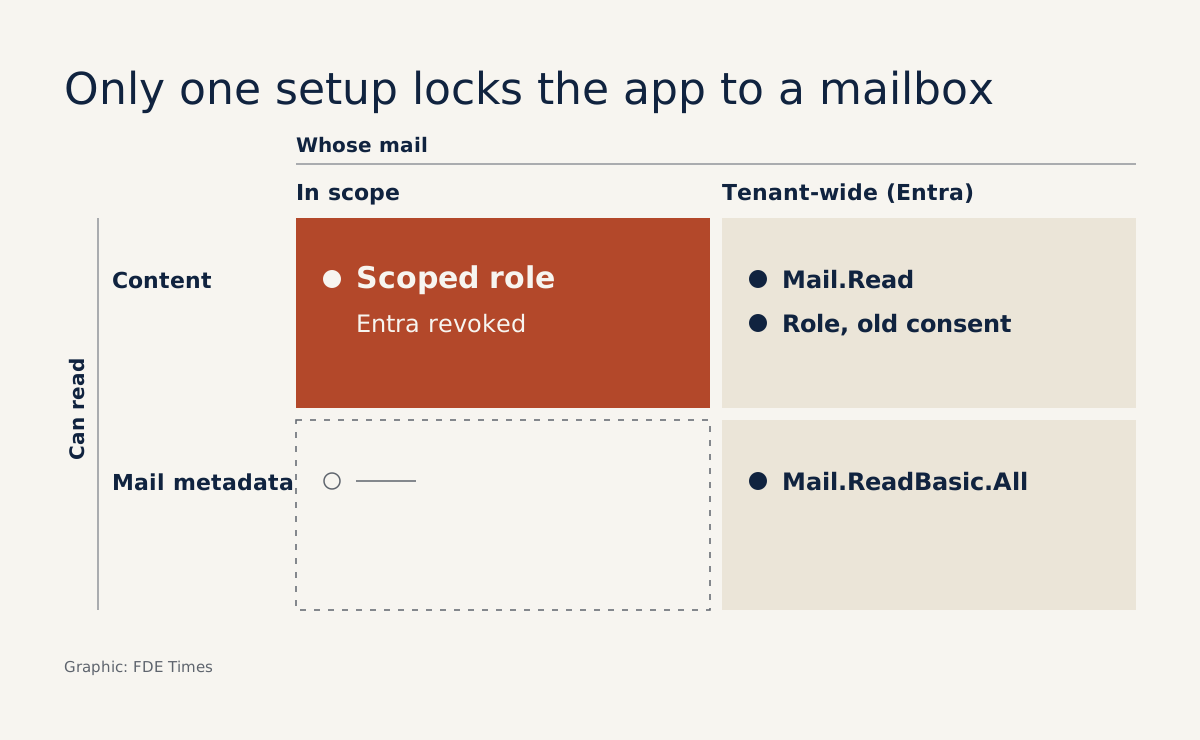
A single admin consent to Mail.Read for a connector meant to read the invoices mailbox is enough for the app to read every mailbox in the tenant. A 2021 post on rakhesh.com described this reality: Graph only grants mail-read permission across all mailboxes, and limiting it takes extra work on the Exchange side.
If your agent needs to read a customer’s email, have an answer ready for the question IT will ask: “what can it read?” By the end of this walkthrough, you will be able to answer it with test results.
What you will build, and what you need first
The scenario: the customer wants the agent to read the shared mailbox invoices@, and only that mailbox. You will build an app that calls Graph with no signed-in user, list messages, then lock the app to this one mailbox.
You need a test tenant with admin rights, two mailboxes (one in scope, one out of scope), curl, jq and an Exchange Online PowerShell session. Send a few messages to both mailboxes, and never practise on a customer’s tenant.
Ask one question before writing any code: will a user be signed in when the app runs? Microsoft recommends preferring delegated permissions where they meet the requirement. App-only suits background jobs with nobody in front of a screen.
Step 1: register the app and request the narrowest permission
Register the app, create a credential, then add the application permission Mail.ReadBasic.All. For the list-messages API, this is the lowest application permission; Mail.Read and Mail.ReadWrite are both higher.
This permission serves step 3; in step 4 you will remove it and move to a scoped permission. In the lab, a secret is the shortest path; at a customer, ask about their credential policy before choosing.
Application permissions always require admin consent. Check: the permission has admin consent in the tenant. In your own lab you click it yourself; at a customer, this is a meeting that has to be in the plan.
Step 2: get a token
The version below uses raw HTTP so you can see every parameter. It is for the lab only; do not ship it to production as is. The tenant’s token endpoint is in the Get access without a user documentation. The .default scope bundles every app-level permission the admin has consented to, so you do not list individual permissions here.
# Lab shortcut: TOKEN_URL is the tenant's token endpoint
export TOKEN_URL='<tenant token endpoint>'
export CLIENT_ID='<application id>'
read -rs CLIENT_SECRET

TOKEN=$(curl -s -X POST "$TOKEN_URL" \
  -d "client_id=$CLIENT_ID" \
  --data-urlencode "client_secret=$CLIENT_SECRET" \
  --data-urlencode "scope=https://graph.microsoft.com/.default" \
  -d "grant_type=client_credentials" | jq -r .access_token)

if [ -n "$TOKEN" ] && [ "$TOKEN" != "null" ]; then
  echo "got token"
else
  echo "no token"
fi
Check: the terminal prints got token. If not, rerun the command without the jq part to read the error response, but never paste a response containing a token into a chat or a ticket.
Step 3: read the messages in a specific mailbox
To read a specific user’s messages, call /users/{id | userPrincipalName}/messages. The snippet below uses $select to fetch only the fields you need.
This is a trimmed version, meant only to confirm that the app can read mail, not code for reading an entire mailbox; parameter details are in the List messages documentation.
export MAILBOX='invoices@test-domain'
URL="https://graph.microsoft.com/v1.0/users/$MAILBOX/messages?\$select=subject,receivedDateTime"

curl -s -H "Authorization: Bearer $TOKEN" "$URL" \
  | jq '{message_count: (.value | length)}'
Check: message_count is greater than 0, because you sent mail to this mailbox. Compare the returned data with what the agent has to do: that is the basis for deciding whether you need a higher permission.
Why a working app is only halfway there
The app works, but it is still too broad. Microsoft classes application permissions as highly privileged, because the app can access and modify data without anyone signing in. Its documentation is blunt: granting an app more permissions than it needs is poor security practice.
The table below shows why Mail.ReadBasic.All alone does not close the matter. When the agent needs more data, you have to request a higher permission, and at that point the mailbox scope becomes the thing you must lock down.
| Configuration | Permission level | Whose mail |
|---|---|---|
Mail.ReadBasic.All from Entra |
Lowest for listing messages | No per-mailbox limit |
Mail.Read from Entra |
Higher | Every mailbox |
Application Mail.Read role with a scope |
Mail read via Exchange RBAC | Only mailboxes in scope |
Step 4: change the permission and lock the app to the right mailbox
Now the brief changes: suppose the agent also needs to read invoice PDFs and the lowest permission is no longer enough. You must move up to Mail.Read, but this time not in Entra: grant it through Exchange’s Application Mail.Read role, bound to a scope.
RBAC for Applications in Exchange Online pairs a permission with a resource scope that defines which mailboxes an app may access, and it replaces Application Access Policies.
Here is the trap: effective permissions are the union of the permissions from Entra and those from Exchange RBAC. As Tony Redmond warns on Practical365, leaving Mail.Read in place in Entra overrides every control RBAC provides.
Run the numbers with hypothetical figures: the tenant has 800 mailboxes, and the scope contains only invoices@. With Mail.Read still in Entra, the union of 800 mailboxes and 1 mailbox is still 800. Once consent is removed, the app is left with exactly 1 mailbox.
So clean up Entra first. Any Entra permission that remains adds to the effective permissions, so the Mail.ReadBasic.All granted in step 1 must go, along with Mail.Read if you ever added it: open the app in Enterprise applications, revoke admin consent, then delete those permissions from the app’s configuration.
Check: the app’s list of consented permissions contains no Mail permissions. The portal may move its buttons around, so go by this criterion.
Next, prepare an admin unit containing only invoices@ and note its ID; Microsoft’s RBAC for Applications guide is the reference for the full process. Then fill in the three values and run the two commands below.
# AppId and ObjectId come from the Enterprise applications page
$AppId = '<Application ID>'
$ObjectId = '<Object ID>'
$AdminUnitId = '<admin unit ID>'

New-ServicePrincipal -AppId $AppId -ObjectId $ObjectId
New-ManagementRoleAssignment -App $AppId -Role "Application Mail.Read" -RecipientAdministrativeUnitScope $AdminUnitId
If the customer already manages mailboxes with a management scope, replace the last parameter with -CustomResourceScope and that scope’s name. Check: both commands run without errors. No errors does not yet prove the ID or the scope is right; that has to wait for step 5.
Step 5: prove the app is blocked where it should be
Run Test-ServicePrincipalAuthorization against both mailboxes. This cmdlet bypasses the cache and gives results immediately, whereas permission changes for the real app can take from 30 minutes to 2 hours, depending on how recently the app was used.
Test-ServicePrincipalAuthorization -Identity $AppId -Resource 'invoices@test-domain'
Test-ServicePrincipalAuthorization -Identity $AppId -Resource 'out-of-scope@test-domain'
Check: look for the Application Mail.Read role in the output of each run. The role must be in effect at invoices@ and not in effect at the other mailbox. If it is in effect at both, suspect a scope that is too broad; if at neither, recheck the ID and the scope.
A Graph call made right after a permission change proves nothing, whether it succeeds or fails. So wait out the cache window, then rerun step 2 to get a fresh token.
Do not reuse the step 3 snippet as is for this test. It only prints the length of value, so a denial also shows message_count: 0, exactly like an empty mailbox. The snippet below keeps the HTTP status and the error code.
RESP=$(mktemp)
for MAILBOX in 'invoices@test-domain' 'out-of-scope@test-domain'; do
  URL="https://graph.microsoft.com/v1.0/users/$MAILBOX/messages?\$top=1&\$select=id"
  STATUS=$(curl -s -o "$RESP" -w '%{http_code}' \
    -H "Authorization: Bearer $TOKEN" "$URL")
  echo "$MAILBOX | HTTP $STATUS | $(jq -r '"message_count=\(.value | length) error=\(.error.code // "none")"' "$RESP")"
done
rm -f "$RESP"
Check: the invoices@ line must read HTTP 200, message_count=1, error=none. The out-of-scope line must show an HTTP status other than 200 and a specific error code. If it shows HTTP 200 with mail, go back to the consent clean-up in step 4.
The out-of-scope line is the evidence that matters. Save its exact HTTP status and error code to hand to the customer’s IT team.
Two traps that make you think you are done
The first trap is taking the IDs from the App registrations page, because that is where you just registered the app. That page shows different values from Enterprise applications, and New-ServicePrincipal will be wrong if you use them.
The second trap is treating a clean result from Test-ServicePrincipalAuthorization as sufficient. The cmdlet does not account for permissions granted separately in Entra, so it only speaks to the RBAC side. That is why the real Graph call test in step 5 cannot be skipped.
What to bring to the meeting with the customer’s IT team
Because application permissions always need admin consent, you cannot finish this alone. Bring a single page to the IT meeting: the permission requested, why a lower permission will not do, the list of mailboxes in scope, how to revoke access, and the HTTP status and error code from the out-of-scope mailbox.
This skill also translates well to a CV. Instead of writing “integrated Microsoft Graph”, state that you restricted an app to specific mailboxes and how you verified it. When an FDE job description mentions enterprise data, treat this as an interview story worth preparing.
Next time a customer asks what your agent can read, the best answer is to show them the time it was denied.
Was this article useful?
Thanks for the feedback!
6 sources
- Get access without a user - Microsoft Graph | Microsoft Learn · 2025-08-29
- Overview of Microsoft Graph permissions - Microsoft Graph | Microsoft Learn · 2025-12-26
- List messages - Microsoft Graph v1.0 | Microsoft Learn · 2024-06-21
- Role Based Access Control for Applications in Exchange Online | Microsoft Learn · 2025-11-25
- Microsoft Launches Role-Based Access Control for Applications · 2022-12-07
- Limit app registration to specific mailbox - rakhesh.com · 2021-07-10